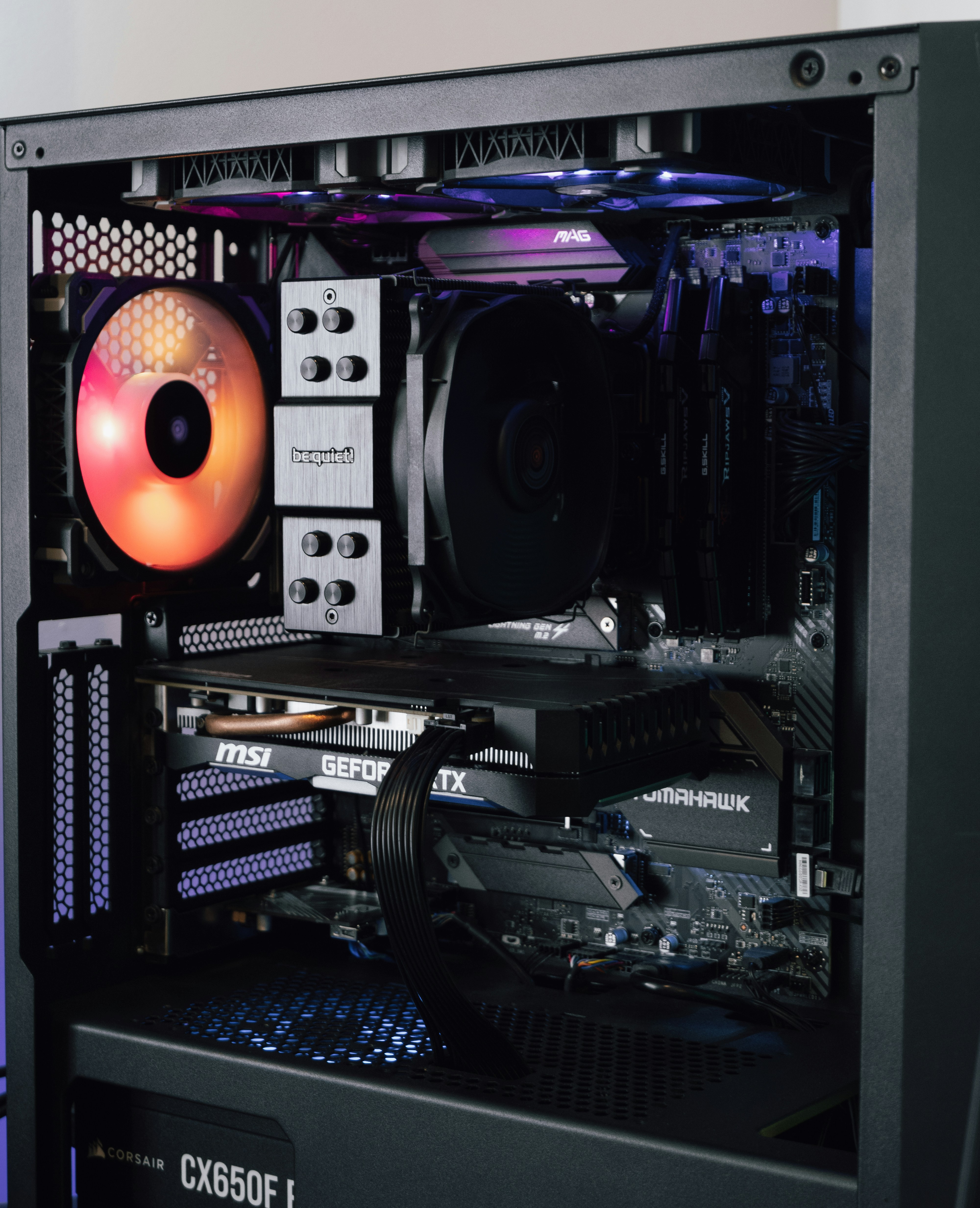
"There is nothing as annoying as trying to turn on your PC, the keyboard lights turn on, but you still get a black screen in response" - Anonymous
Here are 5 easy fixes step by step that you can do at the comfort of your home
- Check your display Cable or HDMI (where it is plugged in)
- Monitor Input: Make sure to check where your monitor is set to the right input source HDMI 1 HDMI 2 DisplayPort cable etc, check using the buttons on the display itself
- Cable Health: Unplug both ends of the cable from the monitor to the PC, make sure to blow out any dust, and place them back in properly, and if you have a extra HDMI or DisplayPort, plug them in instead to rule out a bad wire
- The Port Mistake: If you PC has a dedicated graphics card, your HDMI or DisplayPort cable must be connected to the outputs on the GPU, not the motherboard's video ports
- Reset Your RAM (Memory)
One of the main reasons you might be getting a black screen when trying to power on your computer is becuase your RAM might not be seated properly. It is important that your RAM is seated properly or else power will not be able to flow correctly.
Here is how to troubleshoot.
- Turn off your PC, and unplug it from the wall
- Push down the latches at the ends of your RAM slots to release the RAM sticks out
- Remove the RAM and begin to gently wipe the goal contacts pins with a microfiber cloth, and then put them back into the slots properly
- Push down firmly on both ends until you hear a click
- If you recently enabled XMP/EXPO, clear and reset your motherboard's CMOS to restore default memory
3. How to Reset CMOS
- Unplug your PC from the wall
- Look for a silver, coin-shaped battery on your motherboard, there is a chance that you may have to look under your motherboard
- Use a small screwdriver to release the clip holding the battery in place, then pop it out
- After this wait for around 4-6mins, put the battery back in, plug your computer back to the wall and turn it on
4. Reset Your Graphics Card (GPU) and power cables
- Turn off your PC
- Unplug it from the wall
- Unscrew the retention screws that is holding your gpu to your PC case
- Press down on the small plastic PCLe latch on the motherboard, this will release the card then pull straight out
- Put the GPU back into its slot until the latch clicks shut, retighten the screw, and then plug back in the power cables
- Inspect MotherBoard Diagnostic LEDs or Beep Codes
5. Motherboards should come with diagnostics tools built in that will tell you what went wrong
- Look around the top right corner of your motherboard for tiny labeled lights: VGS, CPU, DRAM or BOOT.
- If the DRAM light stays lit, then put your main focus on your RAM
- If the VGA light stays lit, your motherboard is unable to dectect your graphics card
- If the CPU light stays lit, there is most likely a issue between the processor power delivery or seated pins
Summary
Before thinking that your hardware are broken or not working, make sure to work through these steps in order:
- Make sure the video cable is connected directly into your GPU, not the motherboard
- Reseat the Ram sticks until they click firmly back in place
- Bring out the CMOS batter for around 5mins to reset BIOS settings
- Reseat your GPU and ensure its power cables are clicked tight
- Check your motherboard's EZ Debug LEDs for any specific Hardware errors
If you continue to have this issue, one of your components such as the RAM, GPU, motherboard, power supply or CPU may be broken. I would personally reccomend that you test the components with another PC or have the system diagnosed by a qualified technitcian.